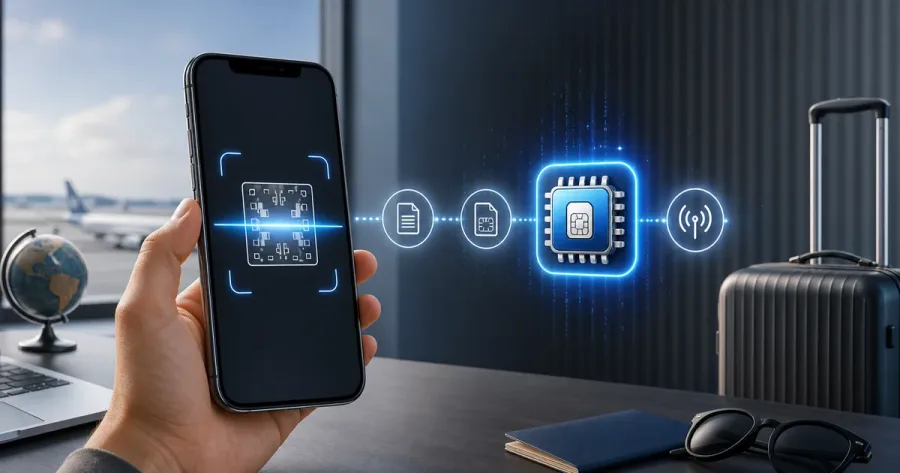
This article is part of our complete travel eSIM guide for Pakistani travellers.
This guide covers the installation steps, what to do before you fly, and common mistakes that can leave a traveller without a signal. Menus vary by iOS version and region, so confirm that your exact carrier-unlocked iPhone model supports eSIM before ordering.
Before you start: three quick checks
- eSIM support: many iPhone XS, XR and later variants support eSIM, but availability varies by model number, sales region and carrier. Check the exact device in our compatibility tool.
- Carrier unlocked: your iPhone must not be locked to a single carrier. Most phones bought outright in Pakistan are unlocked.
- Wi-Fi available: you need an internet connection to scan and install the eSIM profile — do this before you leave Pakistan.
Step 1 — Buy your plan and get the QR code
Choose a destination plan from simless.pk. Then use its WhatsApp button to confirm the offer, payment instructions and delivery timing. Keep the order conversation and installation information private.
Step 2 — Open the eSIM installer
On your iPhone, go to Settings → Mobile Data (or Cellular) → Add eSIM. Tap Use QR Code. If you're reading the QR code on the same phone, tap "Enter Details Manually" and use the activation code from your email instead.
Step 3 — Scan the QR code
Point the camera at the QR code (display it on a laptop or second screen). If the phone recognizes the profile, tap Continue, then Add eSIM. Download time varies with the plan, device and internet connection.
Step 4 — Label your lines
iOS will ask you to name the new line. Call it something clear like "Travel Data". Set your Pakistani SIM as the Default Line for calls and iMessage, and choose the eSIM for Mobile Data. This keeps your number active while the eSIM carries your internet.
Step 5 — Turn on Data Roaming for the eSIM (on arrival)
This is the step travellers most often miss. Go to Settings → Mobile Data → [your eSIM line] → turn ON Data Roaming. For a travel eSIM, "roaming" simply means it is connecting to a network abroad — this is normal and does not incur extra charges because your data is already prepaid. Turn data roaming off for your Pakistani SIM to avoid carrier fees.
Troubleshooting: no signal after landing
- Confirm Data Roaming is on for the eSIM line (Step 5).
- Toggle Airplane Mode on and off to force a fresh network search.
- Check that Mobile Data is set to the eSIM, not your home SIM.
- In Settings → Mobile Data → eSIM → Network Selection, switch from Automatic to manual and pick a local network.
- Restart the iPhone — this resolves most first-connection issues.
Can I delete the eSIM after my trip?
Yes, but you don't have to. A used or expired eSIM profile sits harmlessly in your settings and uses no data. If you want a clean list, go to Settings → Mobile Data → tap the eSIM → Delete eSIM. Keep the QR code email if there's any chance you'll reinstall it.
Frequently Asked Questions
Why does my iPhone say 'No Service' after installing the eSIM?
Almost always because Data Roaming is off for the eSIM line. Go to Settings → Mobile Data → select your eSIM → turn on Data Roaming. For a prepaid travel eSIM this does not cause extra charges.
Can I install the eSIM after I land?
Installation needs a reliable internet connection, so doing it before departure may be easier when the selected plan permits. Activation and connection timing vary by plan; follow its instructions after arrival.
Will adding an eSIM remove my physical SIM?
No. iPhones support Dual SIM, so your physical SIM and the eSIM work side by side. You keep your Pakistani number for calls while the eSIM handles data.
How many eSIMs can an iPhone store?
Modern iPhones can store eight or more eSIM profiles and have two active at once. You can keep eSIMs from several past trips installed and switch between them.
Set up iPhone while you still have Wi-Fi
Keep the confirmation email open on another device if possible, or use the manual details provided by your eSIM supplier. After adding the line, give it a clear label such as “Travel data”. That makes it less likely that you accidentally switch your Pakistani number away from calls or messages.
Apple’s official eSIM setup guidance is the source of truth for the menus on current iPhones. Follow it alongside the plan-specific activation message, because the provider controls the profile you are adding.
Source used for this section: Apple iPhone eSIM guidance. Reviewed 12 August 2026. Information can change, so confirm the current plan card and ordering details with the WhatsApp team before paying.
Before purchasing: a quick accuracy check
This article is practical guidance, not a promise of network speed, availability or a particular operator. Plan prices, allowance, activation timing, partner networks and fair-use conditions can change. Check the selected offer with the WhatsApp team before paying, and keep the order conversation and installation instructions until the eSIM is working.
Install while connected to Wi-Fi. Your device needs eSIM support, an unlocked carrier status and room for another profile. On arrival, select the travel eSIM for mobile data and follow the activation instructions provided with that plan.
Our verification method explains how Simless reviews catalogue information and updates editorial pages. Use the device compatibility checker before buying.